Pseudo Menubar on a Window
by Alyce Watson [Alyce's Restaurant]
Why a Pseudo Menubar?
Some programs might benefit from having different menus in force, depending on the part of the program being executed. It is possible to make a lot of API calls to switch menus, but it is easier to use mostly native Liberty BASIC code to simulate menus.
Liberty BASIC doesn't allow menus in a dialog window, so the pseudo menubar makes dialog menus possible.
The GraphicBox Menu Twin
This method uses a graphicbox to stand in for the menu. To make it look the same as the real menubar, fill it with the color "buttonface" which matches the desktop color scheme on the user's system. Locate some text on the graphicbox to mimic the menu text on a menubar. This pseudo menubar does not look identical to a real menubar, because it has a border. It is very close, though. Look at the images below to see some examples. The code to set up the pseudo menubar looks like this:
    'set up menu look-alike in graphicbox
    #main.g "setfocus; when leftButtonDown [menuClick]"
    #main.g "down; fill buttonface;backcolor buttonface"
    #main.g "font ms_sans_serif 8"
    #main.g "place 2 14;\New"
    #main.g "place 40 14;\Help"
    #main.g "flush"
The position of the text differs depending upon the length of the words, so some experimentation may be in order to get it right. The StringWidth? command can also be used. See the Graphics Text Tutorial in this issue for details.
The graphicbox can capture mouse button clicks, so the program is set up to check for a left button click and then to simulate a menubar action. If the mouse is in the correct location, a Liberty BASIC popup menu is displayed. The position of the mouse is contained in the variables MouseX and MouseY. MouseY is unimportant here, so the program only needs to evaluate the MouseX coordinate. If it determines that the mouse was clicked on the first word, then the popup menu for that word is displayed. It the mouse is located on the second word, then that popup menu is shown, and so on. The values used for this determination are different for each unique application and are dependent upon the locations and lengths of the various words in the pseudo menu.
[menuClick]
    'check mouse coords and activate proper branch
    if MouseX>70 then wait
    if MouseX>40 then [menuHelp]
    if MouseX<40 then [menuNew]
    wait
Popup Menus
The Liberty BASIC POPUPMENU command provides a real menu for use with the pseudo menubar. It is displayed with its upper left corner at the mouse cursor location, so the positioning is handled nicely by Liberty BASIC.
[menuNew]
    'mouse is over NEW  menu, popup this menu
    popupmenu "New",[new],"Exit",[quit]
    wait

[menuHelp]
    'mouse is over HELP menu, popup this menu
    popupmenu "Help",[help],"Exit",[quit]
    wait
The POPUPMENU command is very easy to use. For each menu item, place the caption in quotation marks followed by a comma, then the branch label in brackets. Repeat for as many menu items as are needed for the menu. It is even possible to use the divider line. The following example places a line between the two items.
popupmenu "Help",[help],|,"Exit",[quit]
Menu in a Dialog Window
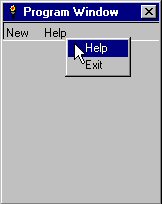
Here is a screenshot of a pseudo menubar in a dialog window. See Dialog Demo for a complete demonstration program.
Multiple Menubars
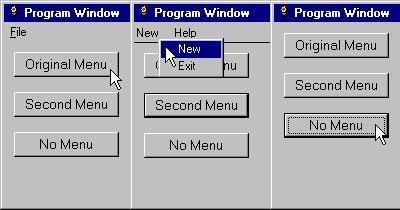
Get a Handle for the Menubar
If it is advantageous to have different menubars at different points in a program, some API calls are necessary. The window handle is used in an API call to get the handle of the window's menu. (The following API call wrappers are from LB Workshop.)
Function GetMenu(hWnd)
    CallDLL #user32, "GetMenu",_
    hWnd As Long,_      'window handle
    GetMenu As Long     'returns handle of menu
    End Function
Redraw the Menubar
Any time a change is made in the look of the menubar, it must be redrawn with this simple API call, that requires the window handle as its only argument.
Sub DrawMenuBar hWnd
    CallDLL #user32, "DrawMenuBar",_
    hWnd As Long,_      'window handle
    r As Boolean
    End Sub
Set the Menu on the Window
The menubar can be displayed or hidden with a call to SetMenu. It requires the window handle as the first argument. The second argument is the handle of the menu. The second argument is passed as 0 if the menubar is to be hidden. It is necessary to remove the real menubar when it is replaced by a pseudo menubar.
Sub SetMenu hWnd,hMenu
    'if hMenu is valid menu handle, sets it to window
    'if hMenu is 0, removed menu
    CallDLL #user32, "SetMenu",_
    hWnd As Long,_      'window handle
    hMenu As Long,_     'menu handle
    results As Boolean
    End Sub
Moving Things Around
The LOCATE command is used to show or hide the graphicbox that is the pseudo menubar. It is given a width and height of 0 to hide it. When it needs to be displayed, it is located at -1, -1 to hide the left and top borders and it is given a wide width to accomodate any width of window and a height to match a typical menubar height.
    'to show the fake menubar
    #main.g "locate -1 -1 3000 21"

    'to hide the face menubar
    #main.g "locate 0 0 0 0"
When the real menu or no menu are displayed, the other controls can be put back in their original locations. When the fake menubar is displayed, the other controls must move down 20 pixels to accomodate it.
    'put buttons into original location
	'for real menubar, or no menubar
    #main.orig "!locate 10 10 105 25"
    #main.second "!locate 10 50 105 25"
    #main.none "!locate 10 90 105 25"
    #main "refresh"

    'move buttons down to make room for graphicbox
    #main.orig "!locate 10 30 105 25"
    #main.second "!locate 10 70 105 25"
    #main.none "!locate 10 110 105 25"
    #main "refresh"
Don't forget to use the REFRESH command after using LOCATE.
It requires a little juggling to show or hide the real menu and to move the other controls on a window, but it isn't difficult to do. For a sample program that allows for the original menubar, a second (fake) menubar, or no menbar at all, see Multi Menubar Demo below.
More to Do
The border can be removed from the graphicbox, if desired, so that it more closely mimics the look of a real menu. In the interest of keeping things simple, the demos below do not include this feature. For instructions on changing the style of a control, see Tip Corner in this issue. Here is a small demo that shows how to remove a border from a graphicbox. It shows how to get the style bits of the graphicbox, then use the XOR operator to remove the border style bit. It then sets the style to the new value.
nomainwin
graphicbox #1.g, 10,10,100,100
open "Test" for window_nf as #1
hGbox=hwnd(#1.g)    'graphicbox handle

hStyle=GetWindowLong(hGbox,_GWL_STYLE)
hNewStyle=SetWindowLong(hGbox,_GWL_STYLE, hStyle XOR _WS_BORDER)
#1 "refresh"

WAIT
Function GetWindowLong(hWin, type)
    calldll #user32,"GetWindowLongA",_
        hWin As long,_
        type As long,_
        GetWindowLong as long
    End Function

Function SetWindowLong(hWin, type, newVal)
    calldll #user32, "SetWindowLongA",_
        hWin as long,_
        type as long,_
        newVal as long,_
        SetWindowLong as long
    End Function
DEMOS
'** Menu in a Dialog Window

    True = 1 : False = 0

[WindowSetup]
    NOMAINWIN
    WindowWidth = 300 : WindowHeight = 210
    UpperLeftX = INT((DisplayWidth-WindowWidth)/2)
    UpperLeftY = INT((DisplayHeight-WindowHeight)/2)

[ControlSetup]
graphicbox  #main.g, -1,-1,3000,21

Open "Program Window" for Dialog as #main

    print #main, "trapclose [quit]"
    print #main, "font ms_sans_serif 10"

    'set up menu look-alike in graphicbox
    #main.g "setfocus; when leftButtonDown [menuClick]"
    #main.g "down; fill buttonface;backcolor buttonface"
    #main.g "font ms_sans_serif 8"
    #main.g "place 2 14;\New"
    #main.g "place 40 14;\Help"
    #main.g "flush"

[loop]
    Wait

[quit] close #main : END

[menuClick]
    'check mouse coords and activate proper branch
    if MouseX>70 then wait
    if MouseX>40 then [menuHelp]
    if MouseX<40 then [menuNew]
    wait

[menuNew]
    'mouse is over NEW  menu, popup this menu
    popupmenu "New",[new],"Exit",[quit]
    wait

[menuHelp]
    'mouse is over HELP menu, popup this menu
    popupmenu "Help",[help],"Exit",[quit]
    wait

[new]
    notice "You clicked 'new'."
    wait

[help]
    notice "You clicked 'help'."
    wait
'** Multi Menubar Demo

    True = 1 : False = 0

[WindowSetup]
    NOMAINWIN
    WindowWidth = 300 : WindowHeight = 210
    UpperLeftX = INT((DisplayWidth-WindowWidth)/2)
    UpperLeftY = INT((DisplayHeight-WindowHeight)/2)

[ControlSetup]
Menu        #main, "&File" , "E&xit", [quit]
button      #main.orig, "Original Menu",[orig],UL, 10, 10, 105, 25
button      #main.second, "Second Menu",[second],UL, 10, 50, 105, 25
button      #main.none, "No Menu",[none],UL, 10, 90, 105, 25
graphicbox  #main.g, 0,0,0,0

Open "Program Window" for Window as #main

    print #main, "trapclose [quit]"
    print #main, "font ms_sans_serif 10"

    'set up menu look-alike in graphicbox
    #main.g "setfocus; when leftButtonDown [menuClick]"
    #main.g "down; fill buttonface;backcolor buttonface"
    #main.g "font ms_sans_serif 8"
    #main.g "place 2 14;\New"
    #main.g "place 40 14;\Help"
    #main.g "flush"

    hMain=hwnd(#main)           'window handle
    hMenuMain=GetMenu(hMain)    'main menu handle

[loop]
    Wait

[quit] close #main : END

[orig]
    'put buttons into original location
    'hide graphicbox, set menu to original
    'and redraw menu bar
    #main.orig "!locate 10 10 105 25"
    #main.second "!locate 10 50 105 25"
    #main.none "!locate 10 90 105 25"
    #main.g "locate 0 0 0 0"
    #main "refresh"

    call SetMenu hMain, hMenuMain
    call DrawMenuBar hMain
    Wait

[second]
    'put graphicbox in menu location
    'move buttons down to make room for graphicbox
    'remove menu from menubar and redraw
    #main.orig "!locate 10 30 105 25"
    #main.second "!locate 10 70 105 25"
    #main.none "!locate 10 110 105 25"
    #main.g "locate -1 -1 3000 21"
    #main "refresh"

    call SetMenu hMain, 0
    call DrawMenuBar hMain
    Wait

[none]
    'put buttons in original locations
    'remove menubar and redraw
    #main.orig "!locate 10 10 105 25"
    #main.second "!locate 10 50 105 25"
    #main.none "!locate 10 90 105 25"
    #main.g "locate 0 0 0 0"
    #main "refresh"

    call SetMenu hMain, 0
    call DrawMenuBar hMain
    Wait

[menuClick]
    'check mouse coords and activate proper branch
    if MouseX>70 then wait
    if MouseX>40 then [menuHelp]
    if MouseX<40 then [menuNew]
    wait

[menuNew]
    'mouse is over NEW  menu, popup this menu
    popupmenu "New",[new],"Exit",[quit]
    wait

[menuHelp]
    'mouse is over HELP menu, popup this menu
    popupmenu "Help",[help],"Exit",[quit]
    wait

[new]
    notice "You clicked 'new'."
    wait

[help]
    notice "You clicked 'help'."
    wait

[subsAndFunctions]

Sub DrawMenuBar hWnd
    CallDLL #user32, "DrawMenuBar",_
    hWnd As Long,_      'window handle
    r As Boolean
    End Sub

Sub SetMenu hWnd,hMenu
    'if hMenu is valid menu handle, sets it to window
    'if hMenu is 0, removed menu
    CallDLL #user32, "SetMenu",_
    hWnd As Long,_      'window handle
    hMenu As Long,_     'menu handle
    results As Boolean
    End Sub

Function GetMenu(hWnd)
    CallDLL #user32, "GetMenu",_
    hWnd As Long,_      'window handle
    GetMenu As Long     'returns handle of menu
    End Function